 Stepasaurus
Use a wearable with Stepasaurus
Connect your wearable, choose its priority in Apple Health, and understand when your steps update.
How your steps reach Stepasaurus
Stepasaurus reads Apple Health—not your wearable directly. Your steps travel from your wearable to its companion app, then to Apple Health, and finally to Stepasaurus.
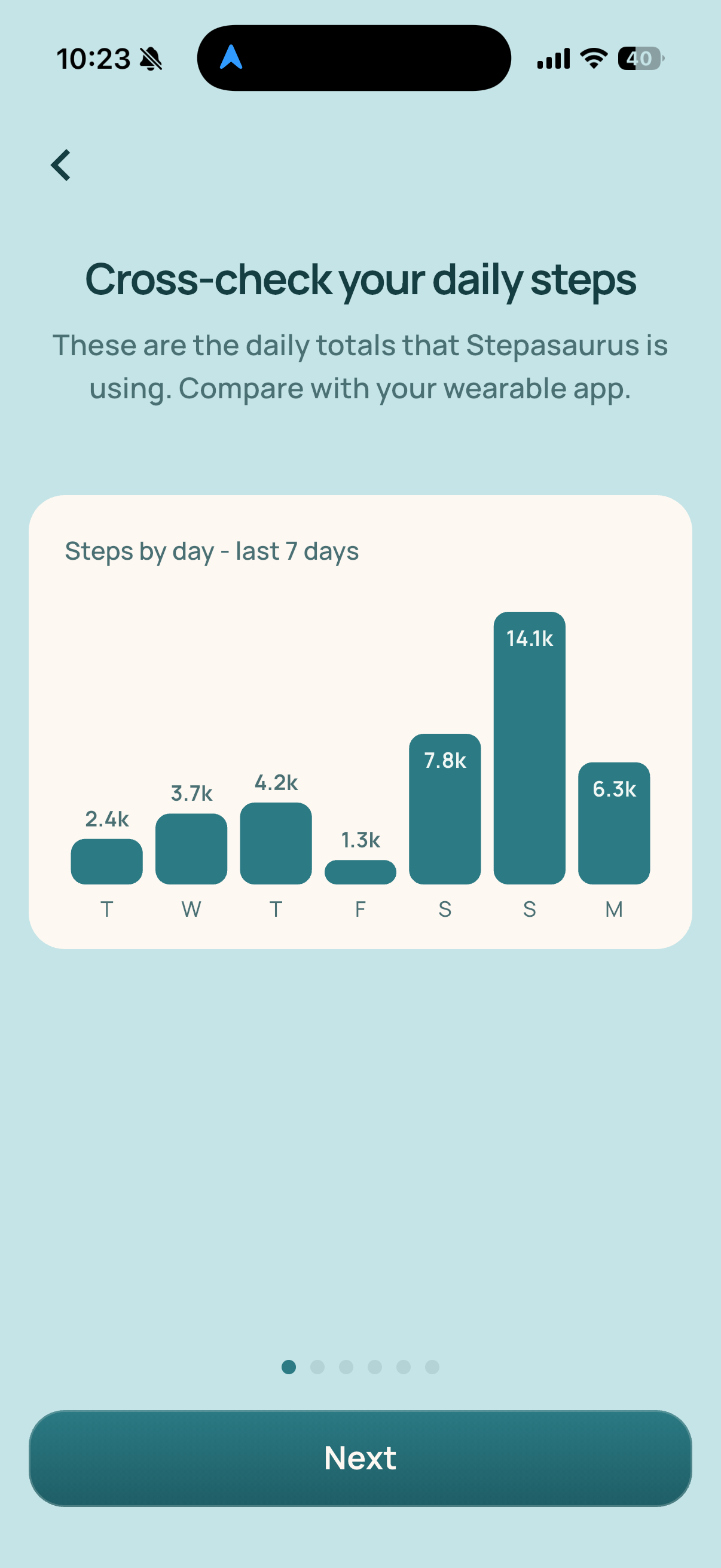
If your wearable shows a newer count, its app may not have shared those steps with Apple Health yet. The wearable setup walkthrough in Stepasaurus Settings includes a seven-day view of the step totals Stepasaurus is using.
1. Connect your wearable to Apple Health
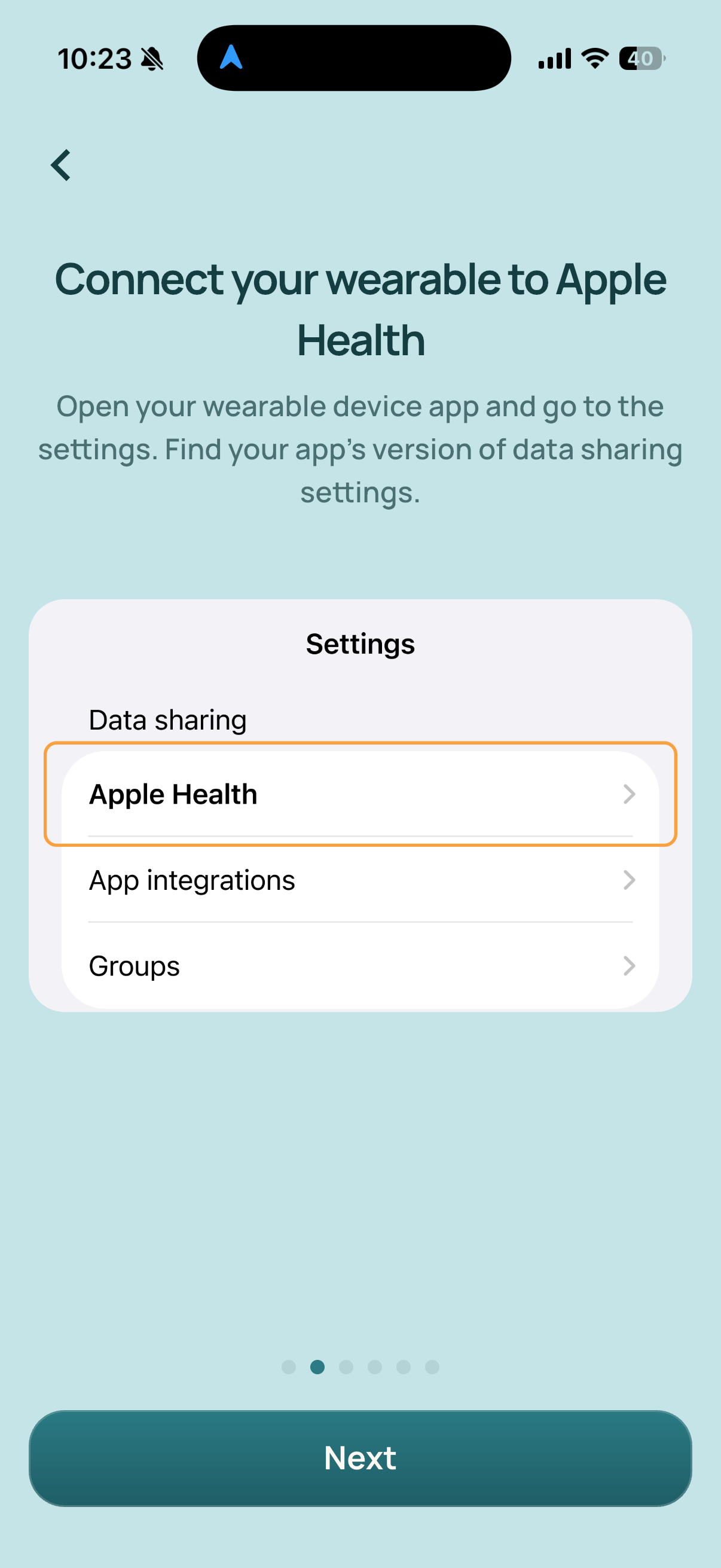
- Open your wearable’s companion app and find its settings.
- Look for Apple Health, Connected apps, Integrations, or Data sharing.
- Enable sharing with Apple Health and allow the app to write step data.
Your wearable’s app must support sending steps to Apple Health. Labels and available settings vary by device.
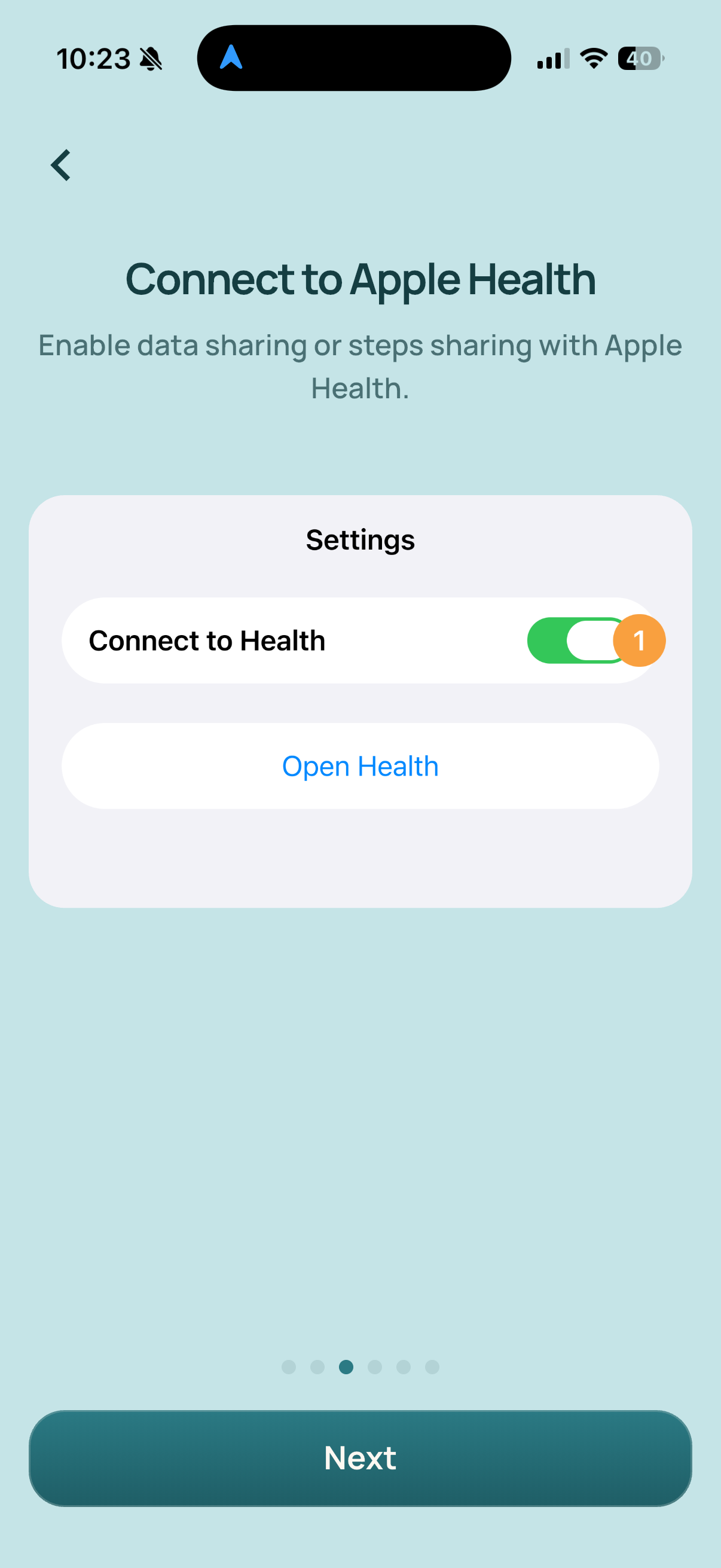
2. Enable step sharing
Follow the permission prompts in your wearable’s app to connect it to Apple Health. Allow step sharing, then let the wearable sync.
3. Find your step sources
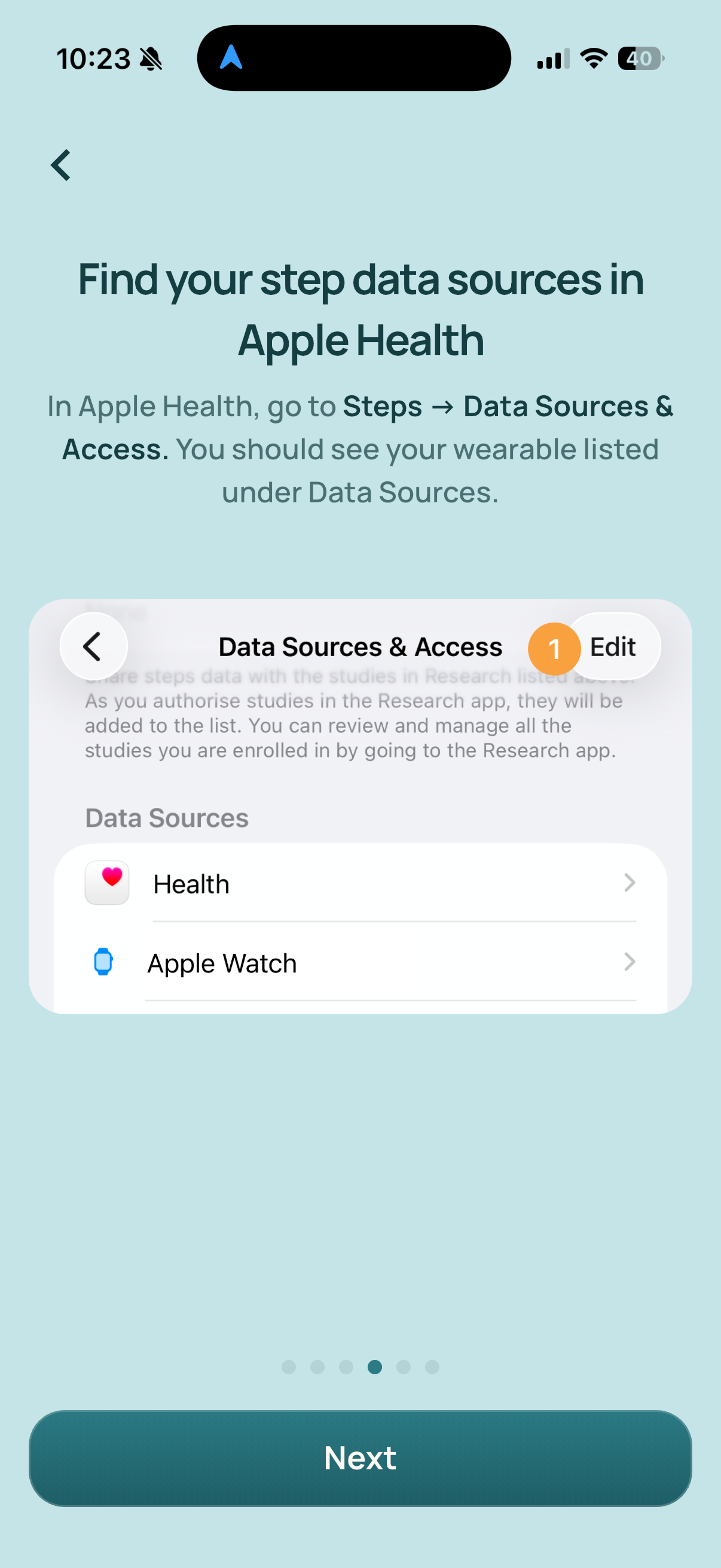
- Open Apple Health and find Steps.
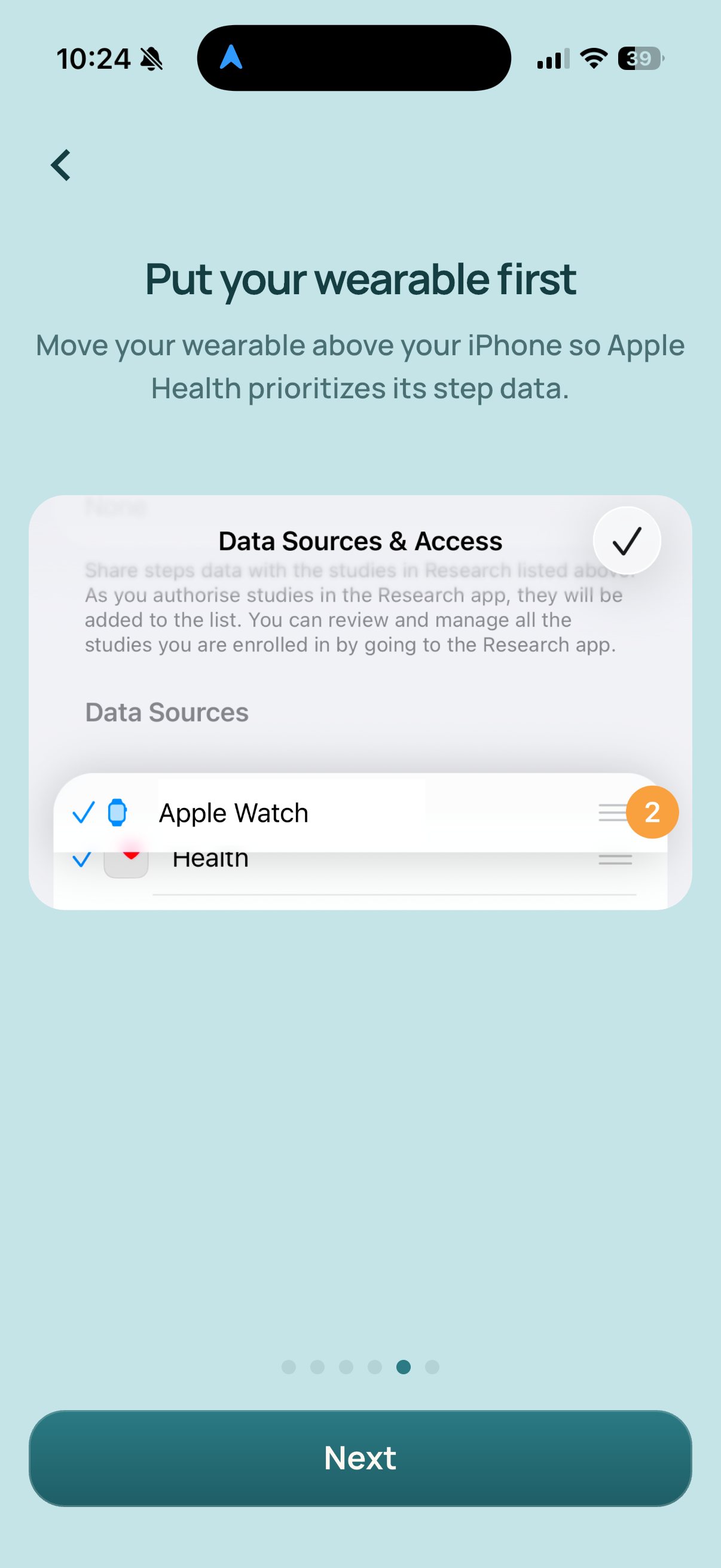
- Scroll down to Data Sources & Access.
- Find your wearable or its companion app under Data Sources, then tap Edit.
If it is missing, check that the app can write steps to Apple Health and has successfully shared some step data.
4. Give your wearable priority
Apple Health gives the highest-listed source priority when multiple sources contribute steps. This changes the priority in Apple Health; it does not connect Stepasaurus directly to the wearable.
- Drag your wearable or its companion app to the top of the Data Sources list.
- Tap Done or the confirmation checkmark.
Priority does not guarantee that Apple Health’s daily total will exactly match the number on your wearable.
5. Sync your latest steps
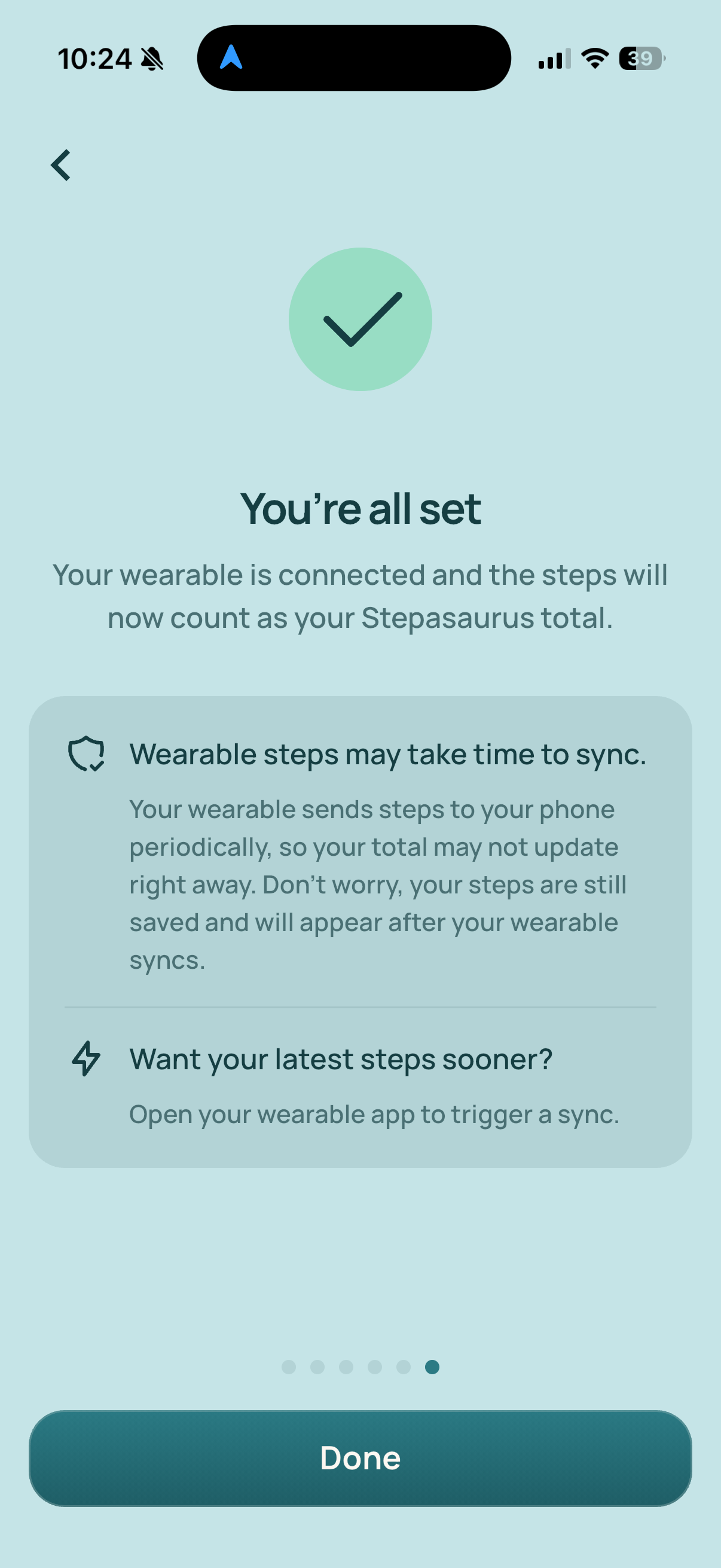
Wearables do not necessarily send steps to Apple Health in real time. Updates may happen periodically, depending on the device, its app, and your settings.
- Open your wearable’s companion app.
- Let it sync with your device, or use its manual sync option if available.
- Check whether the updated steps appear in Apple Health.
- Return to Stepasaurus and allow it to update.
Opening the companion app can trigger a sync, but an immediate update is not guaranteed for every device. Stepasaurus must wait until the steps reach Apple Health.
Prefer your iPhone or Apple Watch?
You do not have to use your wearable’s count. In Apple Health, open Steps → Data Sources & Access → Edit and move your preferred iPhone or Apple Watch source to the top.
This avoids depending on a separate wearable app to send your steps to Apple Health.
Still seeing a mismatch?
Compare the same day in your wearable’s app, Apple Health, and the seven-day step view in Stepasaurus’s wearable setup walkthrough.
Contact support with your wearable model, companion app name, and the totals shown in each place. Crop unrelated personal or Health information out of screenshots.
Still need help?
Email stepasaurusapp@gmail.com with your question. Include your iPhone model, iOS version, and any error message for technical issues. Crop unrelated personal information from screenshots, and never send passwords or payment details.